
How to Send Bulk Emails with PDF Attachments from Sheets (Free)
 Ogtay
Ogtay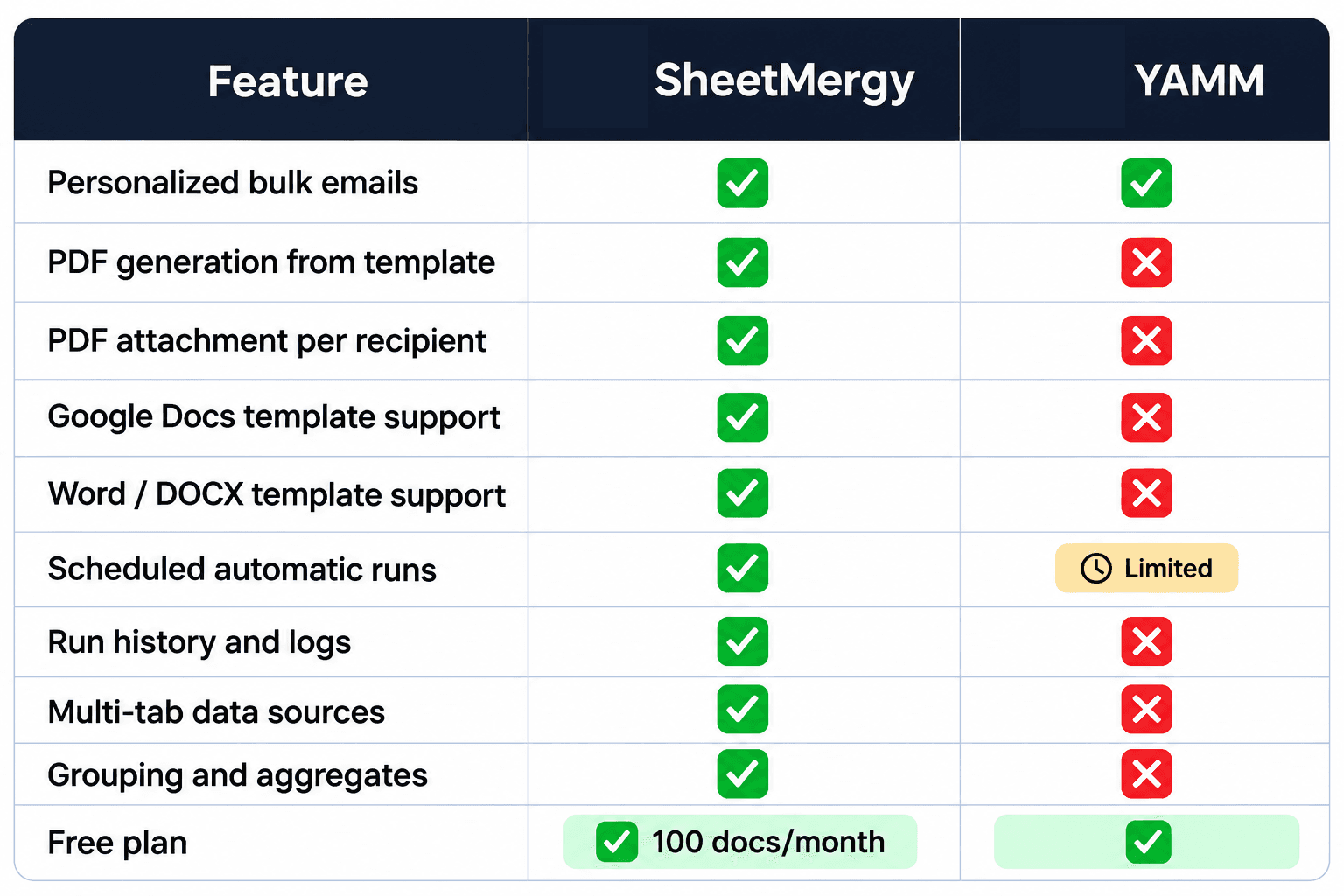
Sending personalized emails with PDF attachments one by one is one of the most time-consuming tasks in any business. You generate the document, save it, open Gmail, attach it, type the email, send it, and repeat. Ten times. Fifty times. Every single month.
There is a better way. This guide shows you how to send bulk emails with PDF attachments directly from Google Sheets — automatically, with each recipient getting their own personalized document.
What You Actually Need
Most people search for this and end up with tools that only do half the job:
- YAMM (Yet Another Mail Merge) — sends personalized bulk emails from Gmail but cannot generate or attach PDF documents. You still have to create the PDFs manually.
- Google Apps Script — can do both but requires coding. Not practical for most business users.
- SheetMergy — connects to your Google Sheet, generates a personalized PDF for each row using your template, and emails it to the recipient in that row automatically. No coding, no manual PDF creation, no copy-pasting.
The key difference is document generation. YAMM sends emails. SheetMergy generates the document AND sends the email in one job.
What SheetMergy Does
SheetMergy reads your Google Sheet, merges each row of data into your document template, generates a personalized PDF, and emails it to the address in that row — all in one automated run. You set it up once and it handles everything.
Works for any document type you need to email in bulk:
- Monthly invoices to clients
- Course completion certificates to students
- Commission statements to agents
- Offer letters to candidates
- Performance reports to employees
- Event confirmations to attendees
Step by Step — Send Bulk Emails with PDF Attachments from Google Sheets
Step 1 — Set Up Your Google Sheet
Create a spreadsheet with one row per recipient. Your column headers become the merge tags in your template.
NameEmailCompanyInvoice #AmountMonth
Sarah Johnson
Acme Corp
INV-001
$2,400
August 2026
James Wilson
Nova Studio
INV-002
$1,800
August 2026
Emma Davis
Blue Tech
INV-003
$3,200
August 2026
The Email column is what SheetMergy uses to know where to send each document. Every other column becomes available as a merge tag in your template.
Step 2 — Create Your Document Template
Open Google Docs and design your document. Use double angle brackets for merge tags — these get replaced with real data from your sheet when the job runs.
Example invoice template:
INVOICE
To: <<Name>>
Company: <<Company>>
Invoice #: <<Invoice #>>
Amount Due: <<Amount>>
Month: <<Month>>
Thank you for your business.
The tag names must match your column headers exactly — including capitalization and spaces. SheetMergy detects all tags automatically when you connect the template.
You can also use a Word (.docx) file instead of Google Docs if you prefer. SheetMergy accepts both.
Step 3 — Create a Job in SheetMergy
Go to sheetmergy.com and sign in with your Google account.
- Click New Job and give it a name — for example "August 2026 Invoices"
- Select your Google Sheet as the data source
- Choose which tab contains your data and confirm the header row
- Select your Google Docs template
- SheetMergy automatically detects all merge tags and maps them to your columns
If your column names don't exactly match your template tags, use the mapping step to connect them manually.
Step 4 — Configure Email Delivery
This is where the bulk email with PDF attachment happens:
- Toggle on Email delivery
- Set To field to your Email column — SheetMergy pulls the address from each row automatically
- Write your Subject line — you can personalize it with merge tags like "Your invoice for <<Month>> is ready"
- Write your Email body — plain text or HTML, with merge tags for personalization
- Set Attachment to PDF — SheetMergy generates the PDF from your template and attaches it automatically
- Optionally add CC or BCC recipients
Your email body might look like:
Hi <<Name>>,
Please find your invoice for <<Month>> attached. The total amount due is <<Amount>>.
Let us know if you have any questions.
Step 5 — Run the Job
Click Generate Now to run immediately. SheetMergy processes every row in your sheet:
- Generates a personalized PDF for each row using your template
- Emails it to the address in that row with your subject line and body
- Attaches the PDF automatically
- Logs every run in your Run History
50 rows means 50 personalized PDFs generated and 50 emails sent — each with the correct name, amount, and details for that recipient. The whole process takes seconds.
Step 6 — Schedule for Automatic Runs
If you send the same type of document every month — invoices, statements, reports — set the job to run automatically:
- Click Schedule
- Choose hourly, daily, weekly, or monthly
- Set the day and time — for example the 1st of every month at 9:00 AM
SheetMergy runs automatically at the scheduled time, pulls the latest data from your sheet, generates new PDFs, and emails them without you touching anything.
Filtering — Only Email Certain Rows
If your sheet contains all clients but you only want to email a specific subset, use SheetMergy's filters:
- Only rows where Status = "Ready"
- Only rows where Amount is greater than 0
- Only rows from a specific month or region
Filters let you use one master sheet for everything and control exactly which rows get processed each run — without deleting rows or maintaining separate sheets.
Grouping — One Email Per Client with Multiple Items
If a client has multiple line items and you want one consolidated PDF with all their items — not one email per line item — use SheetMergy's grouping feature.
Group by the client name or ID column. SheetMergy combines all rows for each client into one document with a table showing each item, and sends one email per client with the consolidated PDF attached.
Use the aggregation tags to show totals in the grouped document:
- <<_sum>> — total of a numeric column across all rows in the group
- <<_count>> — number of rows in the group
- <<_avg>> — average value
How This Compares to YAMM
YAMM is excellent for sending personalized bulk emails from Gmail. But it has one critical limitation — it cannot generate or attach PDF documents. You have to create the PDFs yourself and attach them manually, which defeats the purpose of automation.

If you need emails only — YAMM is a solid free tool. If you need to generate PDFs and attach them automatically — SheetMergy does the complete job.
Common Use Cases
Monthly Client Invoices
Connect your billing sheet, set up an invoice template in Google Docs with <<Name>>, <<Amount>>, and <<Month>> tags, and schedule the job to run on the 1st of every month. Every client gets their personalized invoice PDF by email automatically — without you opening Gmail once.
Course Completion Certificates
After each cohort ends, add student names and completion dates to your sheet and run the job. Every student gets their certificate PDF emailed to them instantly. Works for 10 students or 1,000.
Commission Statements for Sales Teams
Real estate agencies, insurance companies, and sales teams use this to send monthly commission statements. Each agent gets a PDF showing their deals, commissions, and total — generated from the master deals sheet automatically.
HR Offer Letters
When hiring, HR teams fill in candidate details in a sheet and run the job. Each candidate receives their personalized offer letter PDF by email — no copy-pasting, no version errors.
Performance Reports
Managers send weekly or monthly performance reports to each team member automatically — each person gets their own PDF with their specific metrics and numbers.
Tips for Best Results
- Test with one row first. Before running on 50 rows, filter to one test row and send to your own email. Confirm the PDF looks correct and the email delivers properly.
- Use PDF output. PDFs are non-editable and look professional. Always use PDF for documents you're sending to clients or candidates.
- Match tags exactly. <<Name>> in your template must match the column header Name in your sheet — including capitalization.
- Add an unsubscribe line. For marketing emails, include an unsubscribe option in your email body to comply with email regulations.
- Check your spam folder first. On the first test run check spam — new sending patterns sometimes trigger spam filters.
Frequently Asked Questions
Can I send bulk emails with PDF attachments from Google Sheets for free?
Yes — SheetMergy's free plan includes 100 documents per month with no credit card required. That covers 100 personalized PDF emails per month at no cost.
Does YAMM support PDF attachments?
No. YAMM sends personalized bulk emails from Gmail but cannot generate or attach PDF documents. You would need to create PDFs manually and attach them yourself, which removes the automation benefit. SheetMergy generates and attaches the PDF automatically.
Can I use my own PDF template design?
Yes — design your template in Google Docs or Microsoft Word exactly how you want it, add <<merge tags>> where your data should appear, and SheetMergy fills them in automatically. Fonts, logos, tables, and formatting are all preserved in the PDF output.
How many emails can I send at once?
On the free plan up to 100 per run. On paid plans there is no row limit per job — you can process hundreds or thousands of rows in a single run.
Can I personalize the email subject line and body?
Yes — both the subject line and email body support merge tags. So you can write "Your invoice for <<Month>> — <<Company>>" as the subject and each recipient sees their own company name and month in the subject line.
What if I want one email per client but they have multiple rows?
Use SheetMergy's grouping feature. Group rows by client name or ID and SheetMergy combines all their rows into one consolidated PDF and sends one email per client — not one per row.
Can I schedule this to run automatically every month?
Yes — set a monthly schedule in SheetMergy and it runs automatically at the time you specify, pulls the latest data from your sheet, generates the PDFs, and sends the emails without any manual action.
Does SheetMergy work with Gmail?
Yes — SheetMergy sends emails through your connected Google account. Recipients see the email coming from your address just like a regular Gmail message.
Stop sending PDF attachments one by one. SheetMergy connects to your Google Sheet, generates a personalized PDF for every row using your template, and emails each one to the right recipient automatically.
Free plan includes 100 documents per month. No credit card required. Try SheetMergy free at sheetmergy.com